
All help topics
Help topics
- Getting Started
- Sales & POS
- Products & Inventory
- Purchases & Suppliers
- Customers
- Staff & Permissions
- Reports
- Branches
- Hardware
- Payments
- Settings
- Troubleshooting
- Billing & Subscription
- Workshop
- Training
- Sales Agents
- Laundry
- Accounting
- HR & Payroll
- Hotel
- Services
- Communication Center
- Online Store
- CRM
- Restaurant
- F&B Manager
- Production
- Projects
- Asset Management
- All topics
On this page
How to Import Past Sales from a Spreadsheet
Short answer
Open Sales → Import Sales, click Download template file and fill it in. Upload it under File To Import and click Upload and review. Match each column to a sales field, choose the Business Location and how lines are grouped into invoices, and submit. A batch can be undone with Revert Import.
If you have sales recorded elsewhere, such as an old system or a notebook typed into Excel, you can bring them into SellarPro in one go.
Step 1: prepare the file
- Open Sales → Import Sales and click Download template file.
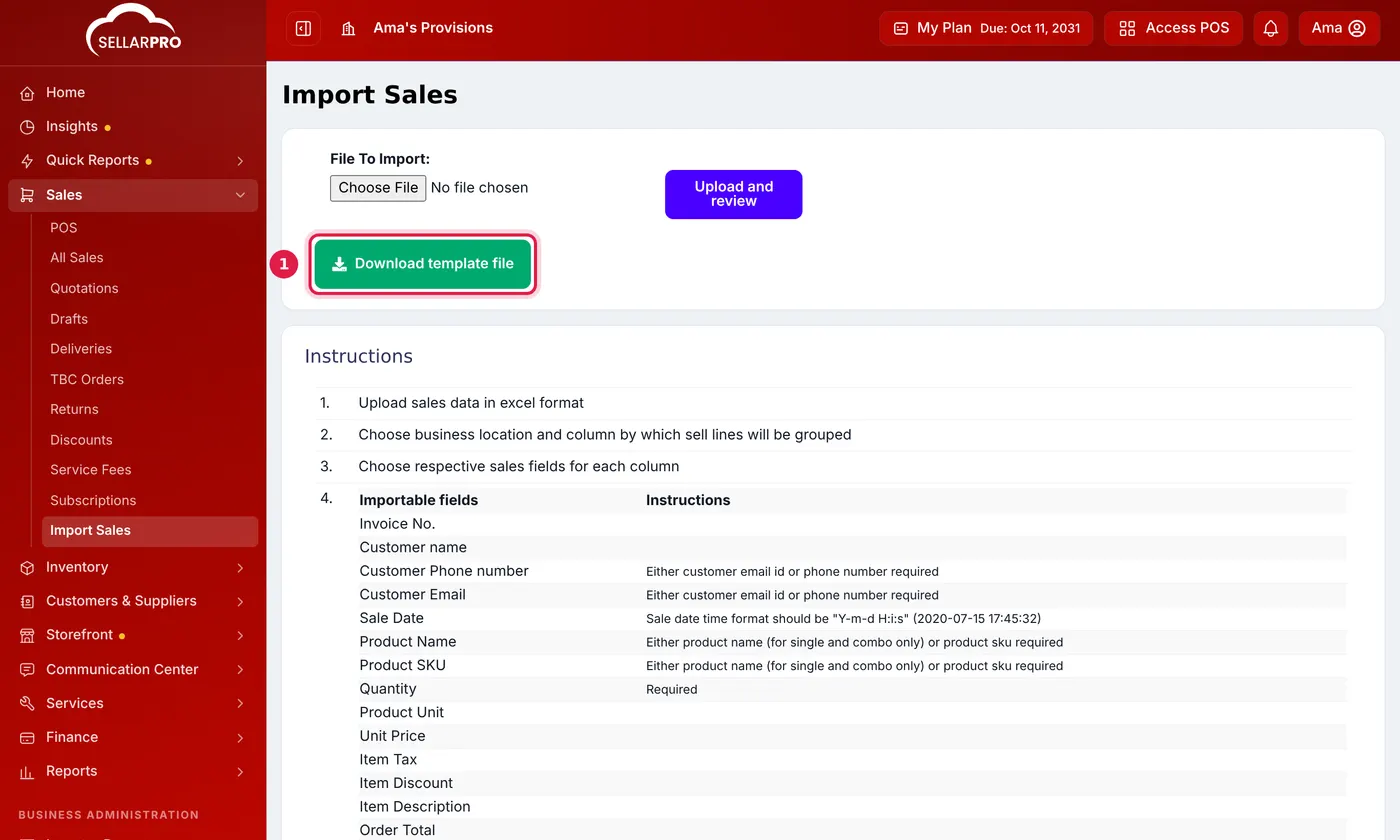
Start from the template so your columns match. - Fill in one row per item sold. Each row needs the customer's phone number or email, the product name or SKU, and the quantity. Rows with the same invoice number become one sale.
Step 2: upload and match the columns
- Choose the file in File To Import and click Upload and review.
- On Preview Imported Sales, choose the sales field for each column, or SKIP to ignore it. A field cannot be chosen twice.
- Choose Group sell line by, the column that tells SellarPro which rows belong to the same invoice, and the Business Location.
- Click Submit.
What gets created
- Each invoice becomes a final sale, and the stock comes off.
- The sales are recorded as unpaid. Add the payments afterwards if they were paid.
- A customer that does not exist yet is created from the name and phone or email.
Undo an import
Every upload is listed under Imports on the same page. Click Revert Import to remove that whole batch.
Common questions
Why was my file rejected?
Each row needs a customer phone or email, a product name or SKU, a quantity and a unit price. The message tells you which one is missing.
Was this article helpful?
Thanks — your answer helps us improve this article.
Still need help?
Can’t find the answer you’re looking for? Our support team in Accra can help.