
All help topics
Help topics
- Getting Started
- Sales & POS
- Products & Inventory
- Purchases & Suppliers
- Customers
- Staff & Permissions
- Reports
- Branches
- Hardware
- Payments
- Settings
- Troubleshooting
- Billing & Subscription
- Workshop
- Training
- Sales Agents
- Laundry
- Accounting
- HR & Payroll
- Hotel
- Services
- Communication Center
- Online Store
- CRM
- Restaurant
- F&B Manager
- Production
- Projects
- Asset Management
- All topics
On this page
How to Import Customers and Suppliers
Open Customers & Suppliers → Import Contacts and click Download template file. Fill in one contact per row: the Contact type, First Name and Mobile are required. Upload it under File To Import and click Submit.
If your customers or suppliers are in a spreadsheet or another system, import them all at once instead of typing them in.
Step 1: fill in the template
- Open Customers & Suppliers → Import Contacts and click Download template file.
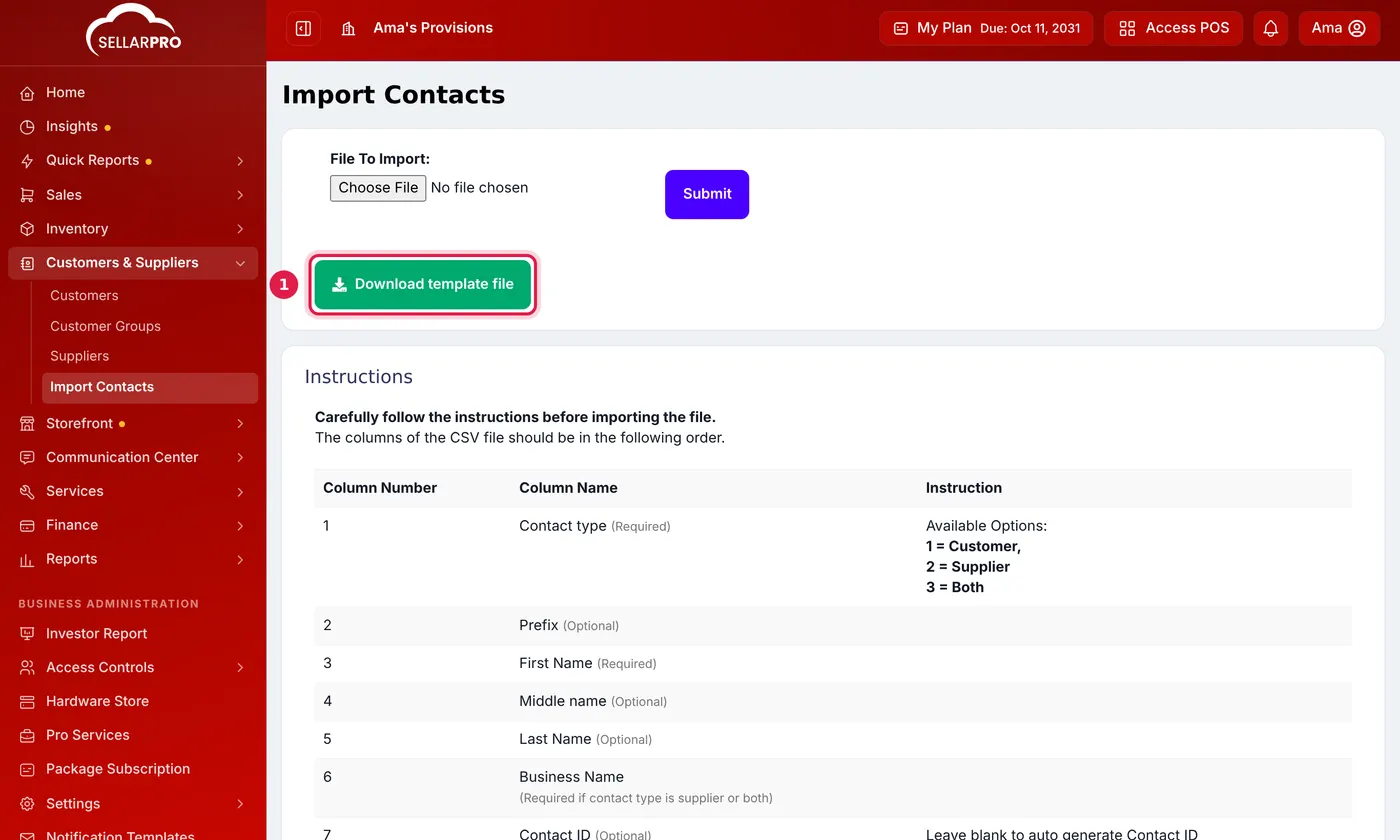
Download the template and keep its columns in order. - Fill in one contact per row, keeping the columns in the template's order. The page lists every column.
Required on every row:
- Contact type: 1 for a customer, 2 for a supplier, 3 for both.
- First Name.
- Mobile.
For suppliers, the Business Name, Pay term and Pay term period (days or months) are required too. Put what a customer already owes you in Opening Balance. Leave Contact ID blank to have it numbered for you.
Step 2: upload
Choose the file in File To Import and click Submit. If a row has a problem, the message tells you which row, so you can fix it and upload again.
Common questions
How do I write the date of birth?
Was this article helpful?
Thanks — your answer helps us improve this article.
Still need help?
Can’t find the answer you’re looking for? Our support team in Accra can help.