
All help topics
Help topics
- Getting Started
- Sales & POS
- Products & Inventory
- Purchases & Suppliers
- Customers
- Staff & Permissions
- Reports
- Branches
- Hardware
- Payments
- Settings
- Troubleshooting
- Billing & Subscription
- Workshop
- Training
- Sales Agents
- Laundry
- Accounting
- HR & Payroll
- Hotel
- Services
- Communication Center
- Online Store
- CRM
- Restaurant
- F&B Manager
- Production
- Projects
- Asset Management
- All topics
On this page
How to Handle Training Applications
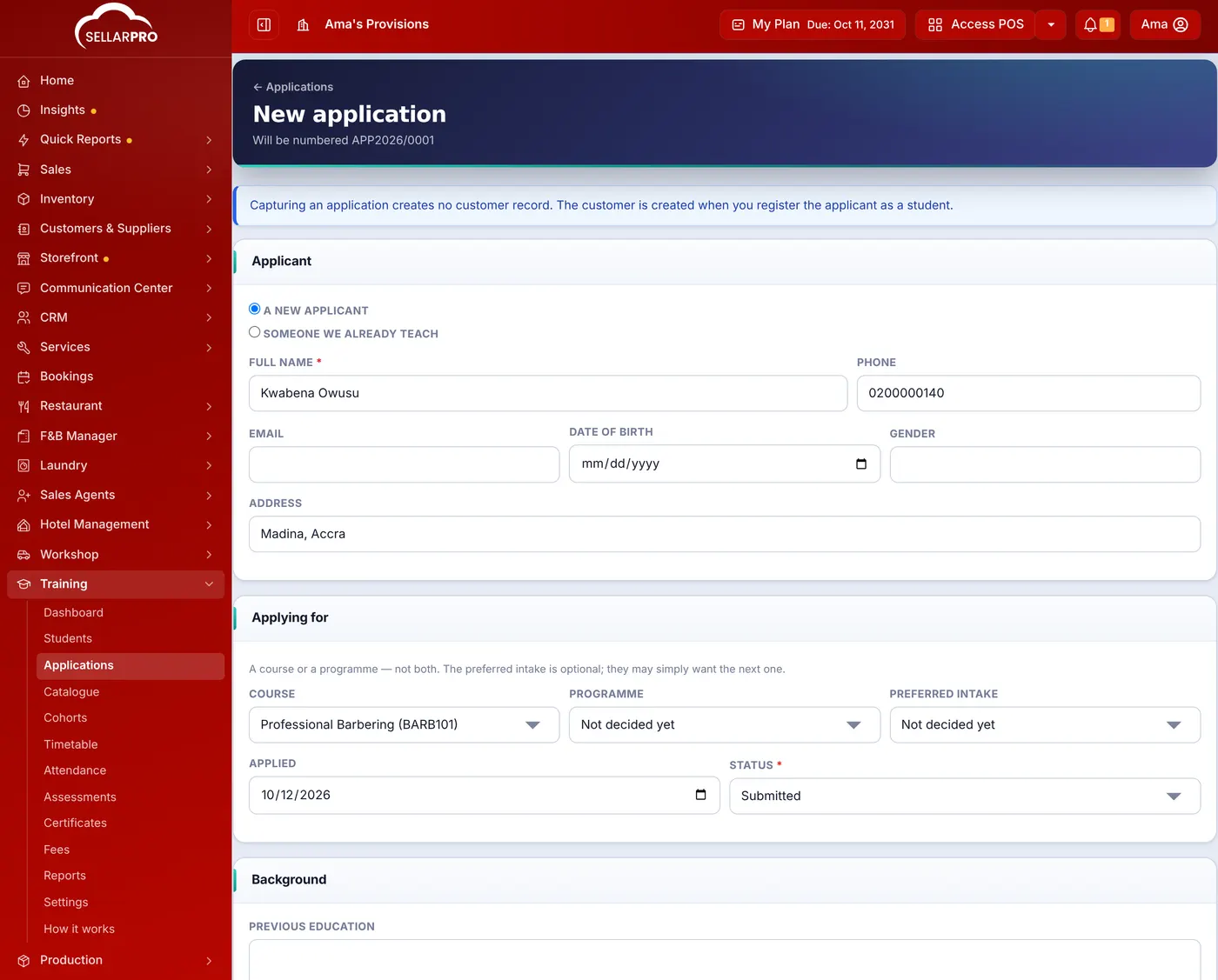
Open Training → Applications → New application to record an enquiry: the applicant, the course or programme and preferred intake, and their background. Review it and Accept, Reject or Waitlist it. Accepting creates the student and can place them in the intake and raise their invoice in one click.
An application is someone asking to join a course. Capturing it creates no customer record; the customer is created only when you accept them.
Record an application
- Open Training → Applications and click New application.
- Choose A new applicant or Someone we already teach, and enter their name, phone, email, date of birth and address.
- Under Applying for, choose the Course or Programme and, if they have one, the Preferred intake.
- Add their Previous education and Occupation, and save.
Decide
Waiting on you lists applications to decide. Open one and choose Accept, Reject or Waitlist. When you accept, leave Place them in an intake now ticked to enrol them in the intake they applied for and raise their invoice in the same click.
Take applications online
Switch on Accept applications online in Training → Settings, then share the form's link on WhatsApp, Facebook or your website. Online applications arrive in the same list.
Was this article helpful?
Thanks — your answer helps us improve this article.
Still need help?
Can’t find the answer you’re looking for? Our support team in Accra can help.