
All help topics
Help topics
- Getting Started
- Sales & POS
- Products & Inventory
- Purchases & Suppliers
- Customers
- Staff & Permissions
- Reports
- Branches
- Hardware
- Payments
- Settings
- Troubleshooting
- Billing & Subscription
- Workshop
- Training
- Sales Agents
- Laundry
- Accounting
- HR & Payroll
- Hotel
- Services
- Communication Center
- Online Store
- CRM
- Restaurant
- F&B Manager
- Production
- Projects
- Asset Management
- All topics
How to Charge a Service Fee on a Sale
Switch on Service Fee under Settings → Business Settings → Modules. At the POS, click the Service Fee line in the totals, check the Service Name and amount and click Update. The fee is added to the total, printed on the receipt and listed under Sales → Service Fees.
Some shops charge for work on top of the goods: cutting, packing, loading or fitting. The Service Fee module adds that charge to the sale under a name you choose.
Step 1: switch it on
- Open Settings → Business Settings → Modules, tick Service Fee and save.
- Optionally, on the Sale tab, set the Default service name (for example "Cutting Fee") and the Default service fee amount. They are prefilled on every sale and can be changed each time.
Step 2: charge it on a sale
- On the POS, add the items as usual.
- Click Service Fee in the totals.
- Check the Service Name and the amount, and click Update.
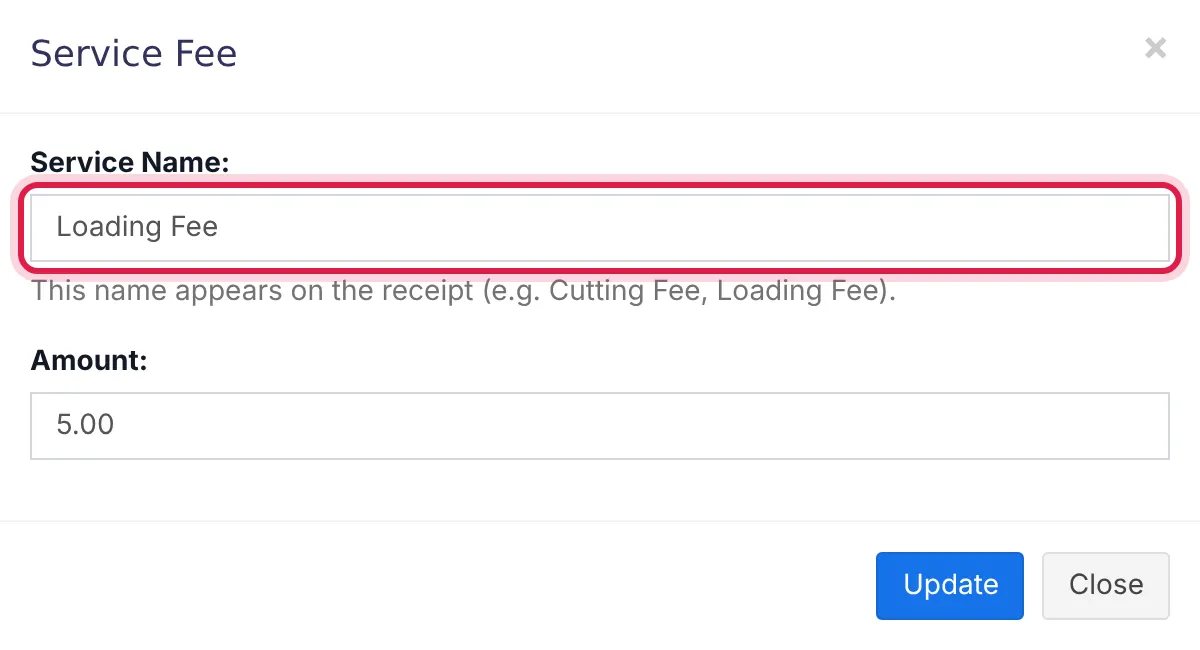
The service name and amount start from your defaults and can be changed per sale. - Take payment. The fee is in the total and on the receipt under the service name.
The fee only applies when you open it and click Update, so sales without it are not affected.
See every service fee
Open Sales → Service Fees for every sale that charged a fee. Staff who are not owners need View Service Fees page on their role.
Common questions
Is a service fee refunded when goods are returned?
Was this article helpful?
Thanks — your answer helps us improve this article.
Still need help?
Can’t find the answer you’re looking for? Our support team in Accra can help.