
All help topics
Help topics
- Getting Started
- Sales & POS
- Products & Inventory
- Purchases & Suppliers
- Customers
- Staff & Permissions
- Reports
- Branches
- Hardware
- Payments
- Settings
- Troubleshooting
- Billing & Subscription
- Workshop
- Training
- Sales Agents
- Laundry
- Accounting
- HR & Payroll
- Hotel
- Services
- Communication Center
- Online Store
- CRM
- Restaurant
- F&B Manager
- Production
- Projects
- Asset Management
- All topics
How to Add a QR Code to Your Receipt
Open Settings → Invoice Settings, edit your invoice layout and fill in Footer QR link with a link that starts with https://, such as your WhatsApp channel. Add an optional QR caption and save. The QR code prints under the receipt footer.
A QR code at the bottom of every receipt is an easy way to grow your WhatsApp channel, get reviews or send customers to your online store. Customers scan it with their phone camera.
Before you start
Have the link ready. For a WhatsApp channel: open the channel in WhatsApp, tap Share, then Copy link. The link must start with https://.
Steps
- Open Settings → Invoice Settings and choose the Invoice Layouts tab.
- On the Invoice layout list, edit the layout your branches use.
- Paste your link into Footer QR link.
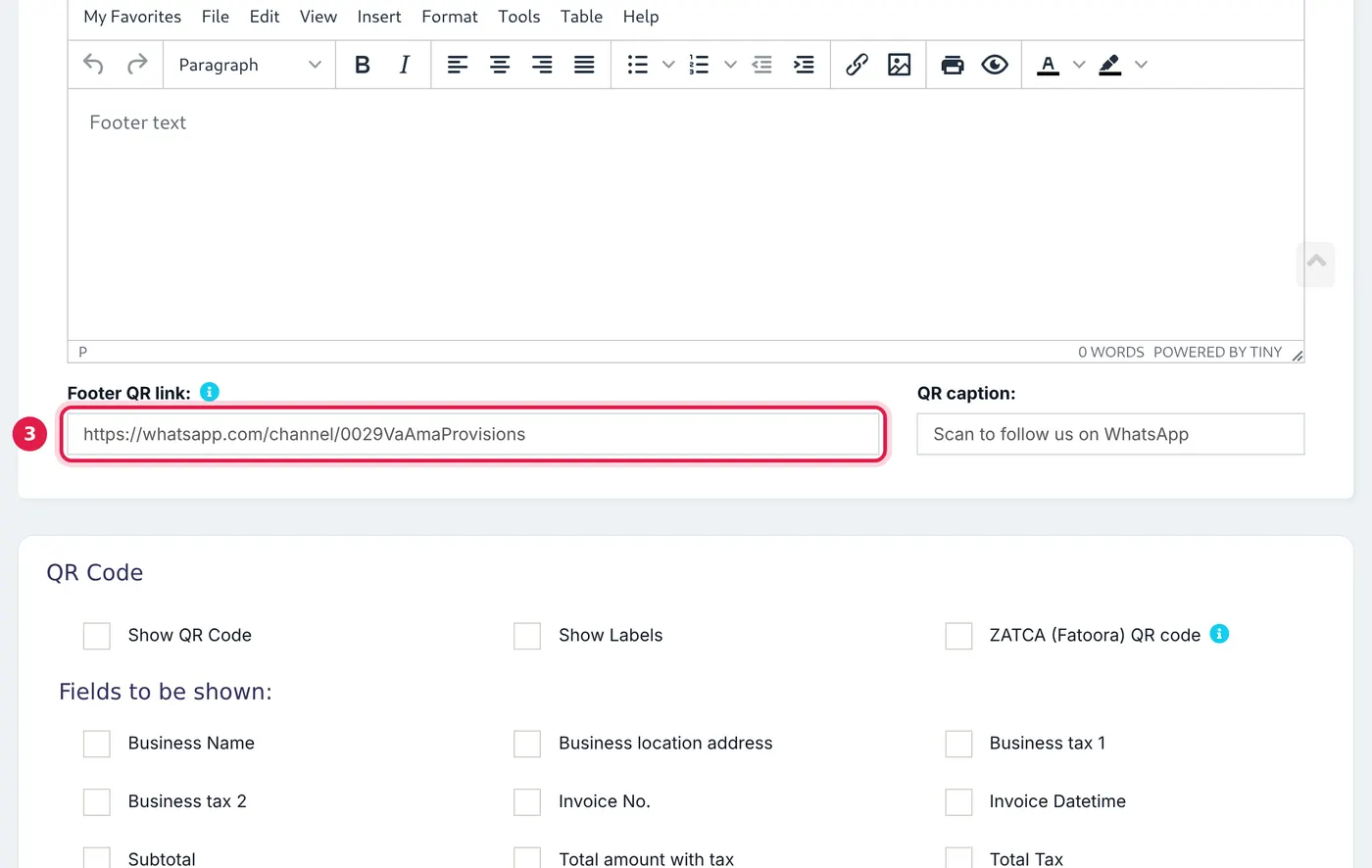
The link and the caption, under the footer text of the invoice layout. - Type a short QR caption if you want one, for example "Scan to follow us on WhatsApp".
- Save the layout.
What happens next
Every receipt printed with that layout now shows the QR code and caption under the footer. It is drawn by SellarPro when the receipt is printed, so it comes out sharp on thermal paper and needs no internet to load.
Do not paste a QR image into the footer text. Images pasted into the footer editor are too large to save and quietly disappear. Use the Footer QR link field instead.
Common problems
The QR code does not print
Check that the link starts with https:// (or http://) and that you edited the layout your location actually uses. Each business location chooses its invoice layout in Settings → Business Locations.
Common questions
Can each branch have a different QR code?
What links can I use?
Was this article helpful?
Thanks — your answer helps us improve this article.
Still need help?
Can’t find the answer you’re looking for? Our support team in Accra can help.