
All help topics
Help topics
- Getting Started
- Sales & POS
- Products & Inventory
- Purchases & Suppliers
- Customers
- Staff & Permissions
- Reports
- Branches
- Hardware
- Payments
- Settings
- Troubleshooting
- Billing & Subscription
- Workshop
- Training
- Sales Agents
- Laundry
- Accounting
- HR & Payroll
- Hotel
- Services
- Communication Center
- Online Store
- CRM
- Restaurant
- F&B Manager
- Production
- Projects
- Asset Management
- All topics
How to Read the Tax Report
Short answer
Open Reports → Tax → Tax Report and choose the dates. The Summary shows, for each tax rate, the output tax on sales, input tax on purchases, tax on expenses and the net payable. The other tabs list every transaction behind each figure.
Steps
- Open Reports → Tax and choose Tax Report.
- Open Filters and set the dates and location.
- Read the total at the top: Output Tax - Input Tax - Expense Tax.
The tabs
- Summary: for each tax rate, the Output Tax (Sales) you charged, the Input Tax (Purchase) you paid, the Expense Tax and the Net payable.
- Input Tax ( Purchase ), Output Tax ( Sales ) and Expense Tax: every purchase, sale or expense that carried tax, so you can check a figure.
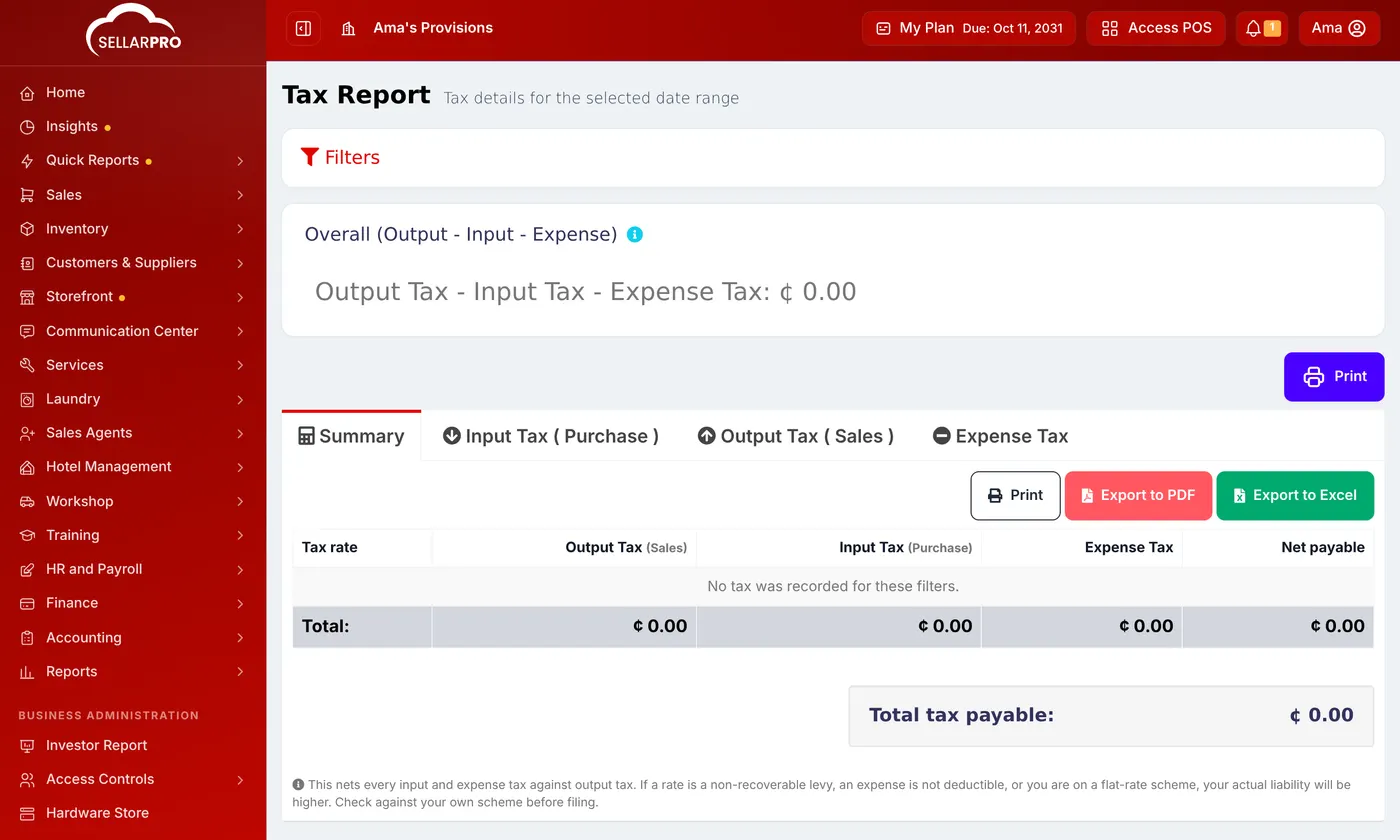
The total nets all input and expense tax against output tax. If a rate is a levy you cannot reclaim, an expense is not deductible, or you are on a flat-rate scheme, your real liability is higher. Check with your accountant before you file.
If you use the Accounting module, its VAT Report gives the same figures from your books.
Common questions
The report shows no tax.
No sales, purchases or expenses in the period carried a tax rate. See How to Add Tax Rates.
Was this article helpful?
Thanks — your answer helps us improve this article.
Still need help?
Can’t find the answer you’re looking for? Our support team in Accra can help.