
All help topics
Help topics
- Getting Started
- Sales & POS
- Products & Inventory
- Purchases & Suppliers
- Customers
- Staff & Permissions
- Reports
- Branches
- Hardware
- Payments
- Settings
- Troubleshooting
- Billing & Subscription
- Workshop
- Training
- Sales Agents
- Laundry
- Accounting
- HR & Payroll
- Hotel
- Services
- Communication Center
- Online Store
- CRM
- Restaurant
- F&B Manager
- Production
- Projects
- Asset Management
- All topics
On this page
How to Read the Expense Report
Short answer
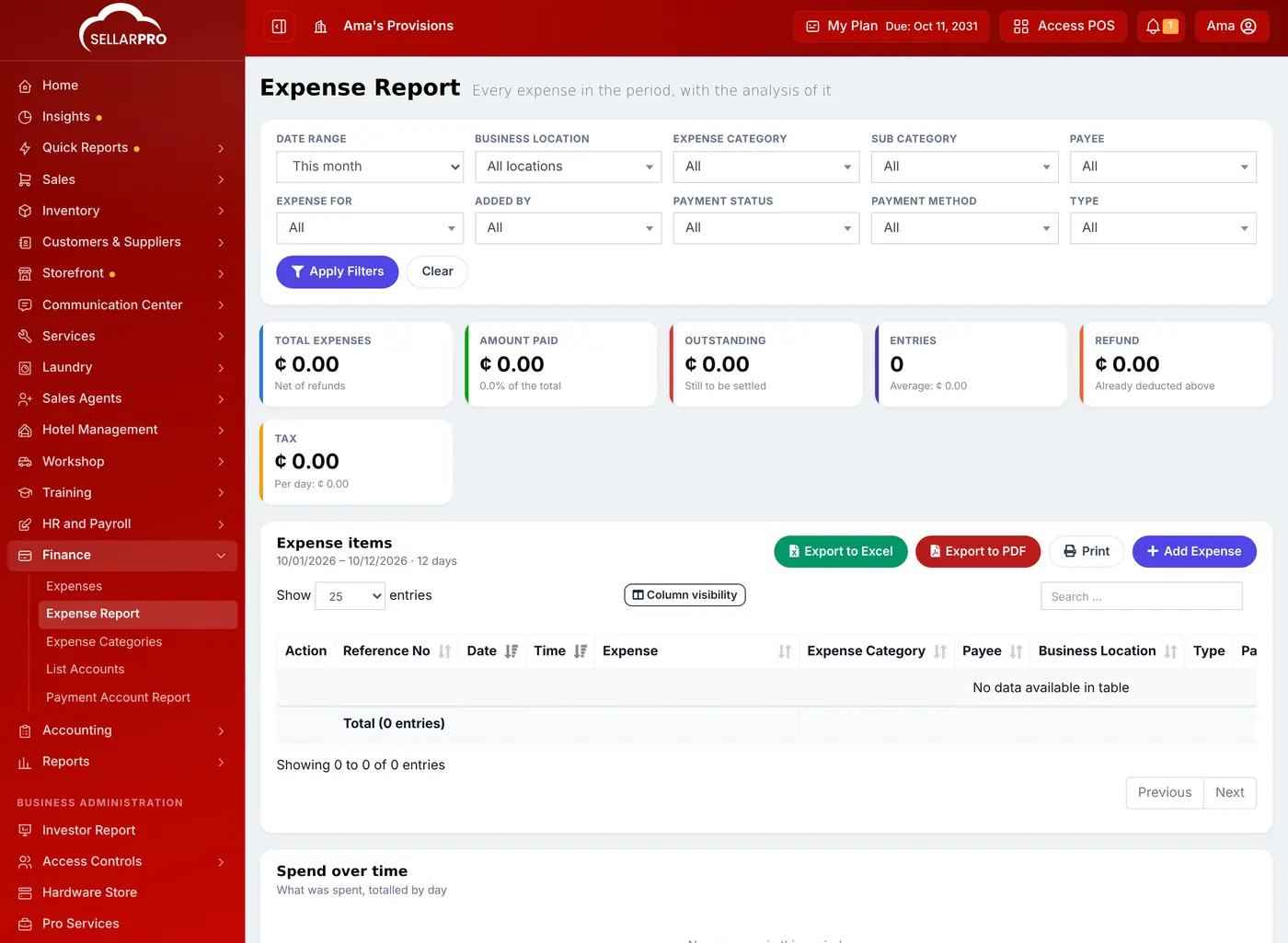
Open Finance → Expense Report. Choose the date range, branch and any filters, and click Apply Filters. The cards show total expenses, what is paid and outstanding, and refunds. Below are every expense, charts by day, category and payment method, and the top payees. Export to Excel or PDF.
The Expense Report answers "where did the money go?" for any period.
Steps
- Open Finance → Expense Report.
- Choose the Date Range, such as This month, Last month or a Custom period, and the Business Location.
- Narrow it down if you need to: Expense Category, Payee, Expense For (the staff member), Payment Status or Payment Method.
- Click Apply Filters.
What you see
- Total Expenses: everything spent in the period, with refunds already taken off.
- Amount Paid and Outstanding: what has been settled and what is still owed.
- Entries and the average, Refund and Tax.
- Expense items: every expense, with Export to Excel, Export to PDF and Print.
- Charts: Spend over time, Spend by category, How it was paid, Top payees and Settled and outstanding.
Common questions
Why is Total Expenses less than the sum of the list?
Expense refunds are shown as their own rows and taken off the total.
Was this article helpful?
Thanks — your answer helps us improve this article.
Still need help?
Can’t find the answer you’re looking for? Our support team in Accra can help.