
All help topics
Help topics
- Getting Started
- Sales & POS
- Products & Inventory
- Purchases & Suppliers
- Customers
- Staff & Permissions
- Reports
- Branches
- Hardware
- Payments
- Settings
- Troubleshooting
- Billing & Subscription
- Workshop
- Training
- Sales Agents
- Laundry
- Accounting
- HR & Payroll
- Hotel
- Services
- Communication Center
- Online Store
- CRM
- Restaurant
- F&B Manager
- Production
- Projects
- Asset Management
- Device Repair
- Bookings & appointments
- Set up for your industry
- Hire Purchase
- Refer & earn
- All topics
On this page
How to Create Hire Purchase Plans
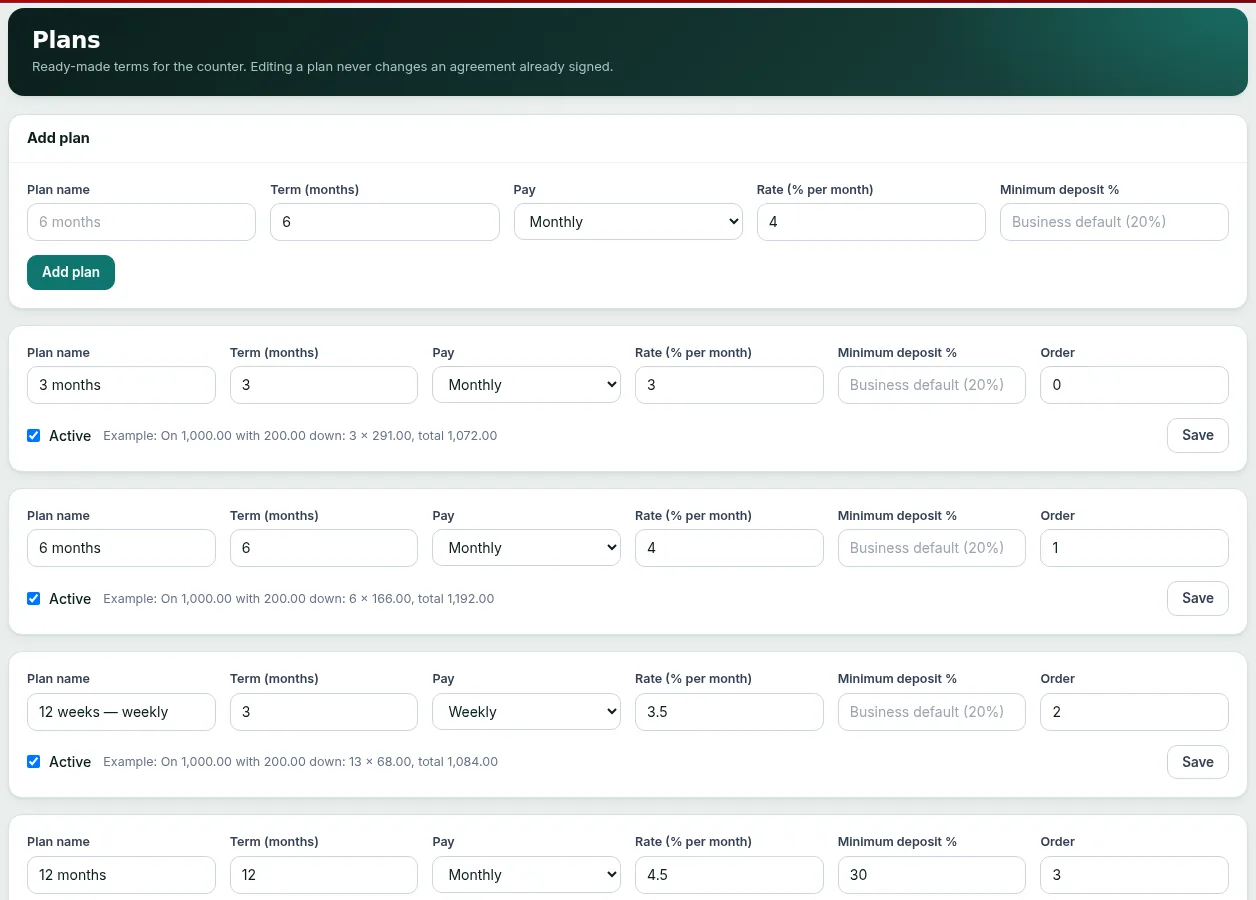
Open Hire Purchase → Plans, fill in Add plan with a name, the term in months, how often the customer pays, the rate per month and, if you want, a minimum deposit for that plan, then click Add plan. Your counter picks plans with one tap.
A plan is a ready-made set of terms, so the counter doesn't type rates and terms for every customer.
Add a plan
- Open Hire Purchase → Plans.
- Under Add plan, fill in:
- Plan name: what staff see, for example "6 months".
- Term (months).
- Pay: Weekly, Every 2 weeks or Monthly.
- Rate (% per month).
- Minimum deposit %: leave it blank to use the business minimum from Settings.
- Click Add plan.
How many installments?
Monthly plans have one installment a month. Weekly plans have 52 a year and every-2-weeks plans 26 a year, worked out for the term. A 3-month weekly plan has 13 installments.
Change or retire a plan
Edit any plan and click Save. Untick Active to stop offering it. Agreements already written keep their own terms, so changing a plan never changes what a customer owes.
Common questions
Can staff change the rate on one agreement?
Was this article helpful?
Thanks — your answer helps us improve this article.
Still need help?
Can’t find the answer you’re looking for? Our support team in Accra can help.