
All help topics
Help topics
- Getting Started
- Sales & POS
- Products & Inventory
- Purchases & Suppliers
- Customers
- Staff & Permissions
- Reports
- Branches
- Hardware
- Payments
- Settings
- Troubleshooting
- Billing & Subscription
- Workshop
- Training
- Sales Agents
- Laundry
- Accounting
- HR & Payroll
- Hotel
- Services
- Communication Center
- Online Store
- CRM
- Restaurant
- F&B Manager
- Production
- Projects
- Asset Management
- All topics
On this page
How to Assign, Track and Retire Assets
Short answer
Open the asset from Asset Management → Assets and click Assign Asset to hand it to a staff member, with a note. Check it in when it comes back. The Assignment History shows everyone who has had it. Change its status to Under Repair, Retired or Disposed as its life goes on.
Hand an asset to someone
- Open Asset Management → Assets and click View on the asset.
- Click Assign Asset.
- Choose who it is Assigned To, add Notes such as its condition, and save.
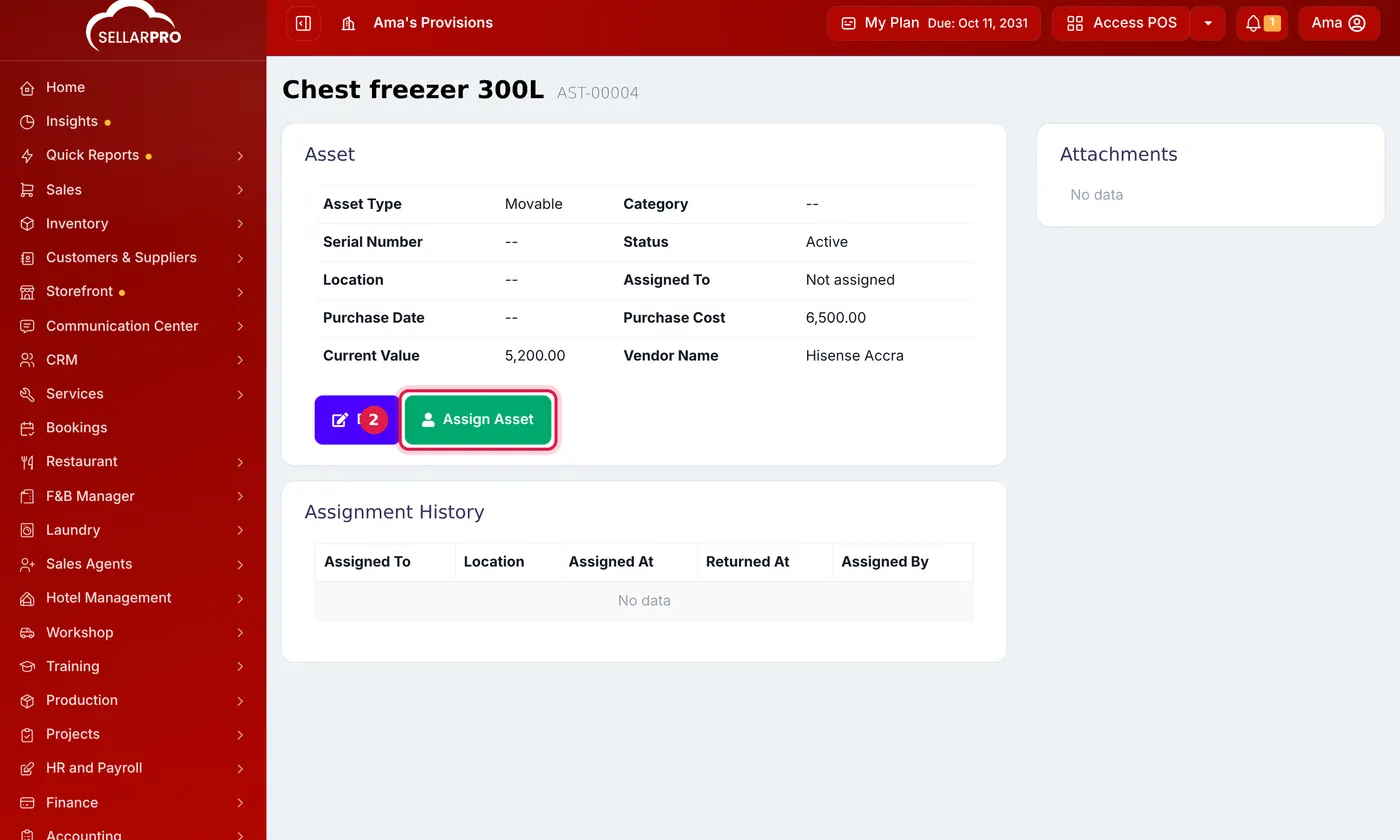
When it comes back, click Check-in Asset on the same page. The Assignment History lists everyone who has had it: where, when it was assigned, when it was returned, and who handed it over.
Keep its status right
Edit the asset and change its Status:
- Active: in use.
- Under Repair: out for repair.
- Retired: no longer used, still owned.
- Disposed: sold, scrapped or given away. Note how in the asset's notes.
Filter the list by status to see, for example, everything under repair.
Was this article helpful?
Thanks — your answer helps us improve this article.
Still need help?
Can’t find the answer you’re looking for? Our support team in Accra can help.